Blur Image to Clear Image Prompt – Make Any Photo HD
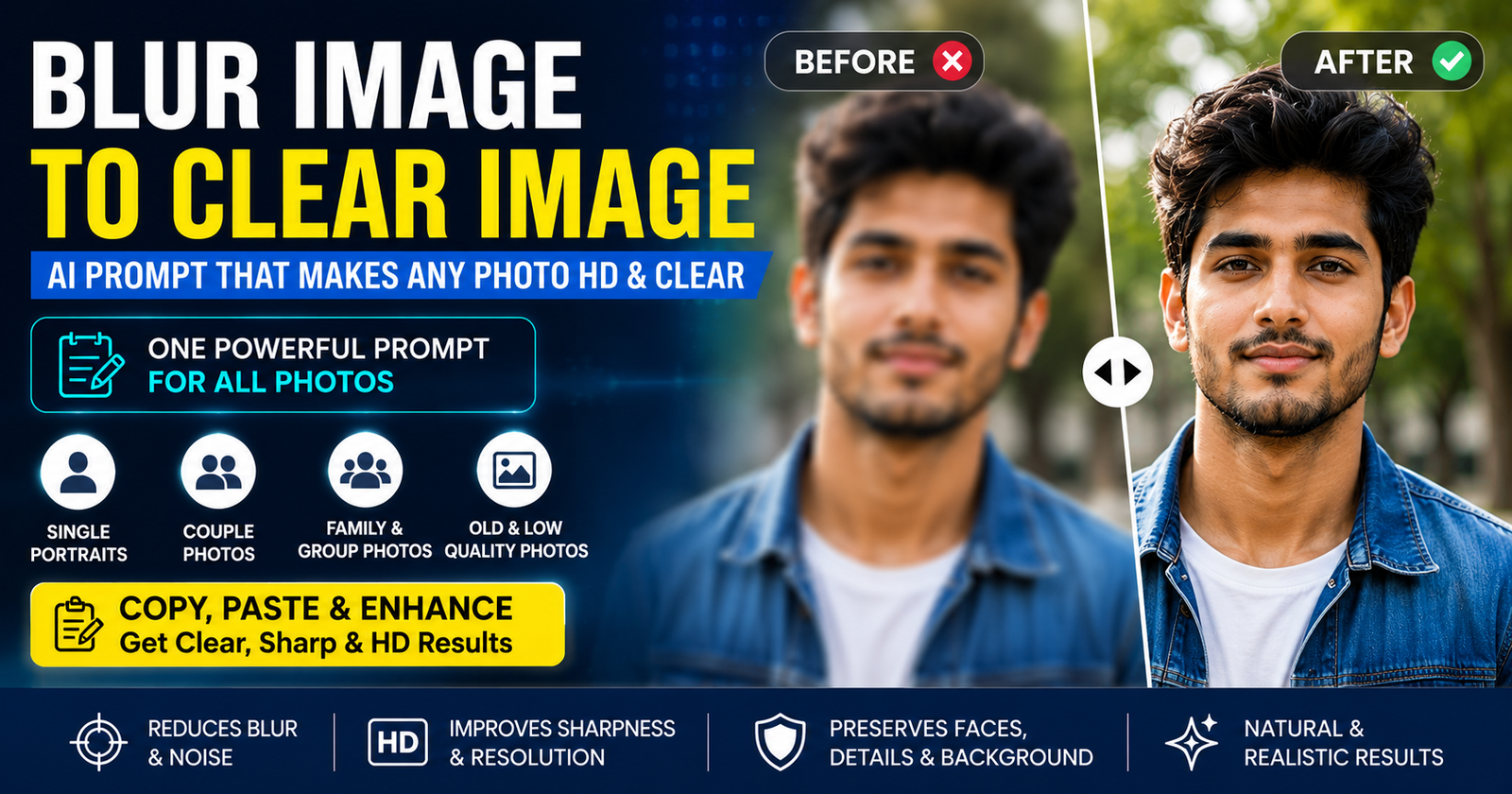
A blurry photo does not always need complicated editing to look clear again. If your picture looks out of focus, pixelated, soft, compressed, or low quality, the right blur image to clear image prompt can help AI improve its clarity while keeping the original photo natural. Below, you’ll find one powerful copy-and-paste prompt designed to enhance single portraits, couple photos, family or group pictures, and old images.
It focuses on reducing blur, improving sharpness and resolution, restoring natural facial and clothing details, and preserving the original faces, expressions, poses, colors, and background. Upload your blurry image, copy the prompt, and use it with a compatible AI image editor to create a cleaner, sharper, HD-looking photo.
Best Blur Image to Clear Image Prompt
You do not need a different prompt for every blurry photo. The prompt below is designed to work with portraits, selfies, couple photos, family pictures, group photos, old images, and other low-quality photos. It tells the AI what to improve while also specifying the important details that should remain unchanged.
How to Use the Blur Photo to Clear Photo Prompt
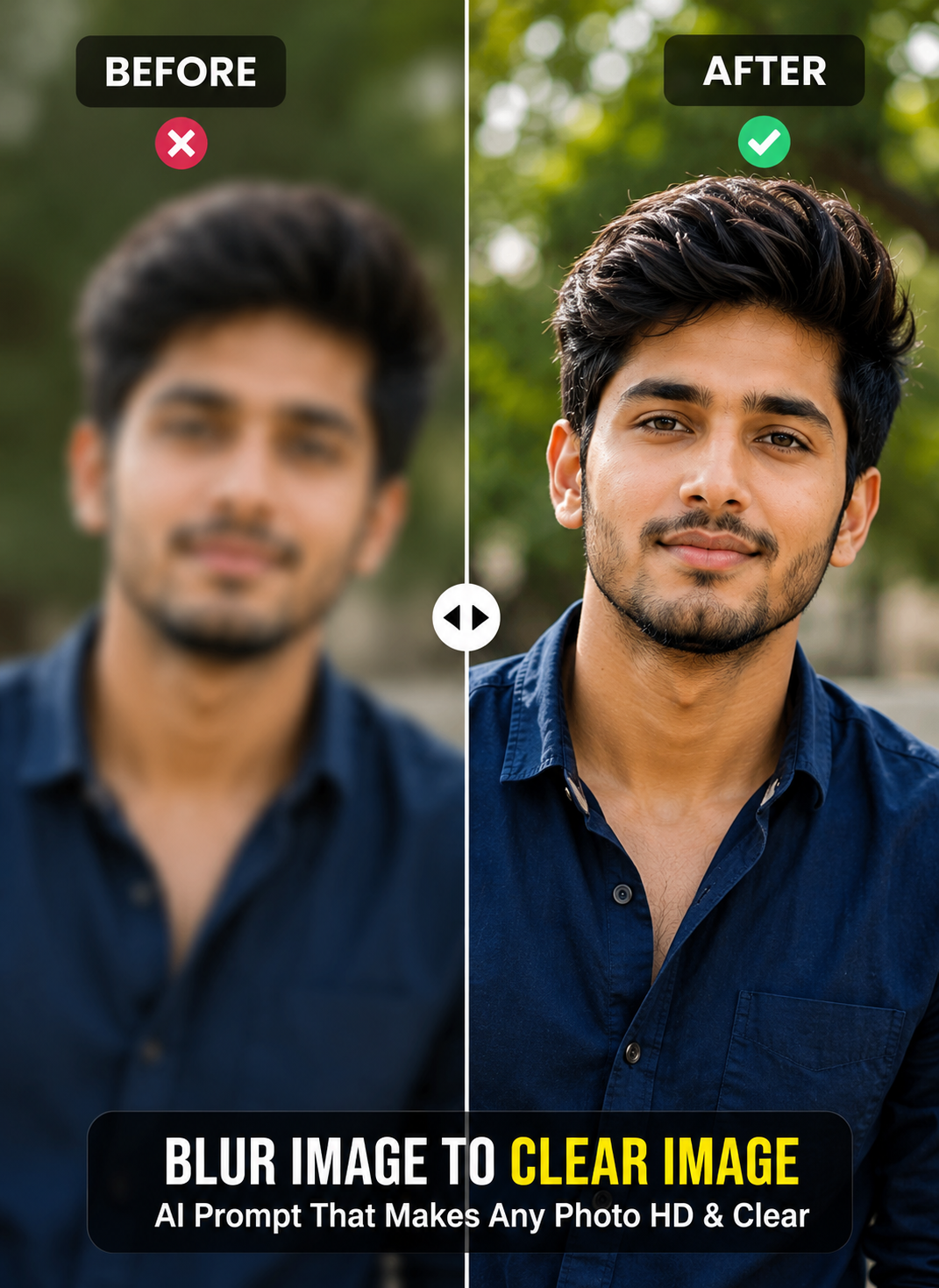
Using the blur photo to clear photo prompt is simple — upload your image to Gemini AI or ChatGPT.
Copy the master prompt above and paste it with your uploaded image. Let the AI generate the enhanced version, then compare it carefully with the original.
Check important details such as faces, expressions, hairstyles, clothing, hands, background objects, and overall composition. If one particular area still needs improvement, ask the AI to correct only that area instead of changing the entire image again.
For example, if the face is already accurate but the image remains slightly soft, you can request better clarity and sharpness while explicitly asking it to keep the face unchanged.
What Can a Blur-to-Clear AI Prompt Improve?
Your photo-enhancement prompt does more than simply tell AI to “make the image HD.” It gives the model specific instructions about the problems that need attention.
Depending on the original image and the AI editor being used, the prompt may help with:
- Soft or slightly out-of-focus photos
- Mild camera or motion blur
- Low-resolution images
- Pixelated photos
- Compression artifacts
- Digital noise and grain
- Soft facial details
- Unclear hair and clothing textures
- Faded or low-quality old photos
- Overall sharpness, contrast, and image clarity
The quality of the final result still depends heavily on how much useful visual information exists in the original photograph.
Can You Use This Prompt for Family and Group Photos?
Yes. The master prompt is intentionally written to handle both single-person and multi-person images.
Family and group photos require extra care because an AI model has several different faces to process at the same time. During enhancement, one person’s face can sometimes change, two faces may begin to look similar, or small background faces may lose their original characteristics.
That is why this prompt tells AI to treat each person as a separate identity and preserve every individual’s facial structure, expression, skin tone, age appearance, hairstyle, clothing, and position.
For the best results with a family photo, use the clearest original version you have. If a person’s face occupies only a few pixels or is completely blurred, AI has much less reliable information available to preserve.
Blur vs Low Resolution: What Is the Difference?
Blur and low resolution can make a photo look unclear, but they are not the same problem.
A blurry photo usually lacks sharp detail because of missed focus, camera movement, subject movement, or similar problems during photography.
A low-resolution photo contains a limited number of pixels. It may be correctly focused but still look pixelated or lose detail when enlarged.
Compression is another issue. Photos downloaded repeatedly from messaging or social media platforms may develop artifacts and lose fine details even if they were originally sharp.
This distinction matters because the required enhancement can be different. Blur correction focuses more on visible edges and focus, while low-resolution enhancement relies more heavily on upscaling and reconstruction.
The master prompt covers both problems so it can also be useful when a photo is blurry and low quality.
Why Does a Photo Become Blurry?
Understanding the source of blur can help you get a better enhancement result.
- Camera shake: Small movements while taking a picture can soften the entire image, especially in low light.
- Subject movement: A moving person, pet, vehicle, or object can appear smeared even when the rest of the photograph is sharp.
- Missed focus: The camera may focus on the background instead of the main subject.
- Low-light photography: Cameras often need slower shutter speeds in dark environments, increasing the chance of motion blur.
- Digital zoom: Heavy zoom can reduce usable detail and make an image appear soft or pixelated.
- Compression: Repeatedly saving, sending, or downloading a photograph can reduce its quality.
Knowing which problem affects your image also helps when giving the AI additional instructions after the first enhancement.
How to Make an Old Blurry Photo Clear
Old printed and scanned photographs often have more than one quality problem. They may contain blur, fading, noise, scratches, low contrast, or limited detail.
You can still use the same blur image to clear image prompt because it instructs AI to preserve the original people and scene while improving visible quality.
However, restoration should remain faithful to the source. If the original photograph is black and white, do not automatically ask AI to colorize it unless you actually want a colorized version. Similarly, vintage clothing, hairstyles, objects, and backgrounds should not be modernized during restoration.
For old family photographs containing several people, pay particular attention to facial identity after enhancement. Smaller or heavily damaged faces are more difficult to restore accurately.
Common Problems When Turning a Blur Image Into a Clear Image
AI enhancement can produce impressive results, but checking the output is important. Here are some common issues and how to handle them.
- The face looks different: Ask the AI to preserve the original facial structure and identity and change only image clarity. Avoid beauty-related instructions.
- Two people look too similar: Specify that each person is a separate identity and that facial features must not be blended or transferred between people.
- Skin looks plastic: Request realistic skin texture and remove instructions related to flawless or perfectly smooth skin.
- The photo looks over-sharpened: Ask for natural sharpness and realistic edges without halos or excessive HDR effects.
- Background objects have changed: Tell the AI to preserve the original background, object placement, framing, and composition.
- Hands or fingers changed: Request accurate hands and natural finger positions while keeping the original pose.
- Colors look unnatural: Ask it to preserve the source colors and lighting while making only subtle exposure and contrast corrections.
- AI added details that were never visible: Request conservative restoration and tell the model not to invent uncertain facial features, text, patterns, or objects.
Tips for Getting Better Blur-to-Clear Results
Start with the original image file whenever possible rather than a screenshot or compressed copy.
Do not ask the AI to change the outfit, background, hairstyle, pose, lighting, and image quality all at once if your main goal is restoration. The more creative changes you request, the greater the chance that the enhanced result will move away from the original photograph.
After the first result, use targeted follow-up instructions. For example, ask to improve only facial sharpness, reduce remaining noise, or correct a changed background while preserving everything else.
Most importantly, compare the enhanced image with the original rather than judging it only by how attractive or sharp it looks.
FAQs About Blur Image to Clear Image Prompts
Final Thoughts
The best blur image to clear image prompt does not need to completely redesign a photograph. Its job is to improve visible clarity while keeping the original image recognizable and natural.
The master prompt above can be used for a single portrait, couple photo, family or group picture, old photograph, or low-quality image. Start with the best original file available, let AI enhance the blur, sharpness, noise, and resolution, and then compare the result carefully with the source.