Radha Krishna and Radha Rani style AI photos have become one of the most common trends on Instagram, WhatsApp Status, and Pinterest — especially around Janmashtami and other festival seasons. The idea is simple: instead of a plain portrait, your photo (or a new AI-generated image) is styled with traditional clothing, jewelry, temple or garden backgrounds, and soft devotional lighting, giving it the look of a divine couple or a Radha Rani/Krishna-inspired portrait.
Below are five ready-to-use prompts, organized by the type of image you want — a couple scene, a solo Radha Rani portrait, a Krishna portrait, a temple setting, or an edit of your own selfie. Copy the one that fits, paste it into Gemini or ChatGPT, and upload your photo if the prompt needs one.
Radha Krishna & Radha Rani Copy And Paste AI Photo Prompt
Below are ready-to-use Radha Krishna and Radha Rani AI photo prompts that work with both Gemini and ChatGPT. Just copy the one you like, paste it into your AI tool, and upload your photo if the prompt calls for one — no editing skills or technical setup needed.
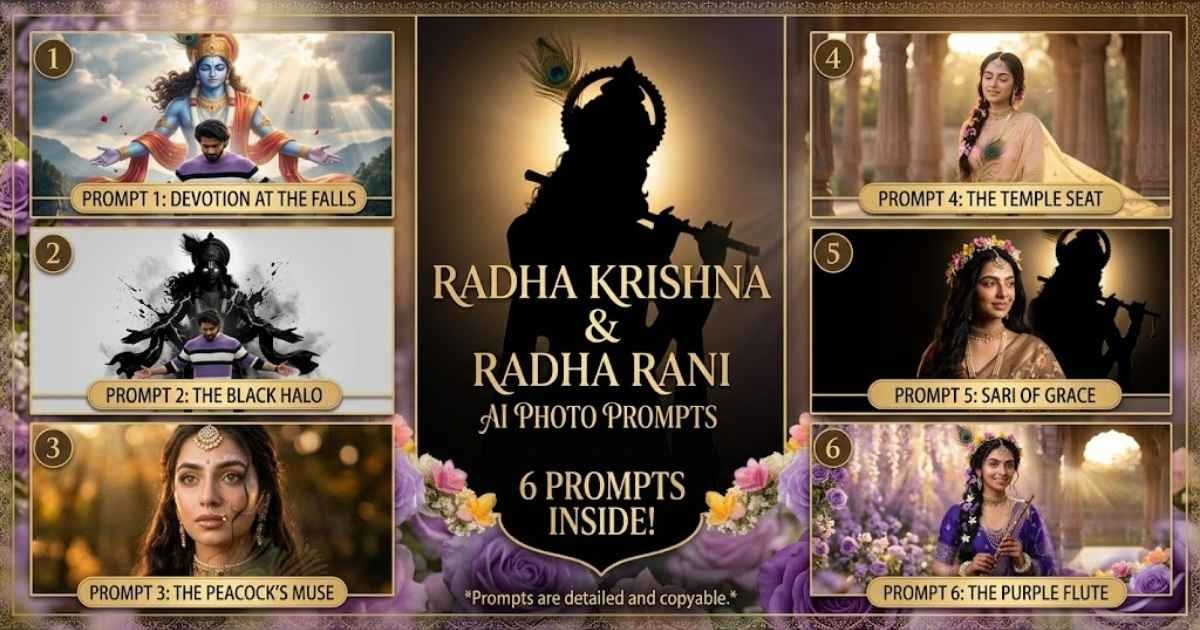
Prompt 1
Use the uploaded photo as the primary identity reference for the human subject. Transform the person from the uploaded image into the scene below while keeping their recognizable identity, facial structure, skin tone, hairstyle, and overall appearance consistent. Do not replace the person with a random face or create a different individual.
Create a hyper-realistic cinematic portrait of the uploaded person with an athletic appearance, standing confidently on a rugged rock formation. Their arms are extended outward while their head is slightly lowered, creating a powerful and spiritual pose.
Dress the person in a purple, white, and black striped sweater, distressed white denim jeans, and chunky blue-and-white sneakers. Preserve their natural facial characteristics and hairstyle from the uploaded reference while adapting the clothing and scene described here.
Behind the person, create a gigantic ethereal representation of Lord Krishna with radiant blue skin, flowing curly hair decorated with a peacock feather, intricate golden jewelry, and elegant red-orange silk robes moving naturally in the wind. Krishna should mirror the person’s open-arm pose, creating a strong visual connection between the subject and the divine figure.
Place a magnificent waterfall cascading down enormous rocky cliffs surrounded by lush green vegetation in the background. Include tiny distant human figures near the waterfall base to provide realistic scale.
Golden rays of heavenly sunlight should pass through dramatic clouds, creating a sacred atmospheric glow. Add delicate red flower petals drifting naturally through the air.
Use magical realism combined with extremely detailed textures, cinematic depth, dramatic chiaroscuro, volumetric sunlight, HDR, and premium fantasy-film cinematography. Simulate an 85mm lens with crisp facial focus and realistic depth separation. Render in highly detailed 8K photorealism with a vertical 3:4 portrait composition and relatively close framing.
Identity protection: The uploaded person must remain the same individual throughout the transformation. Do not generate a random face, alter facial identity, or replace the person’s recognizable features.
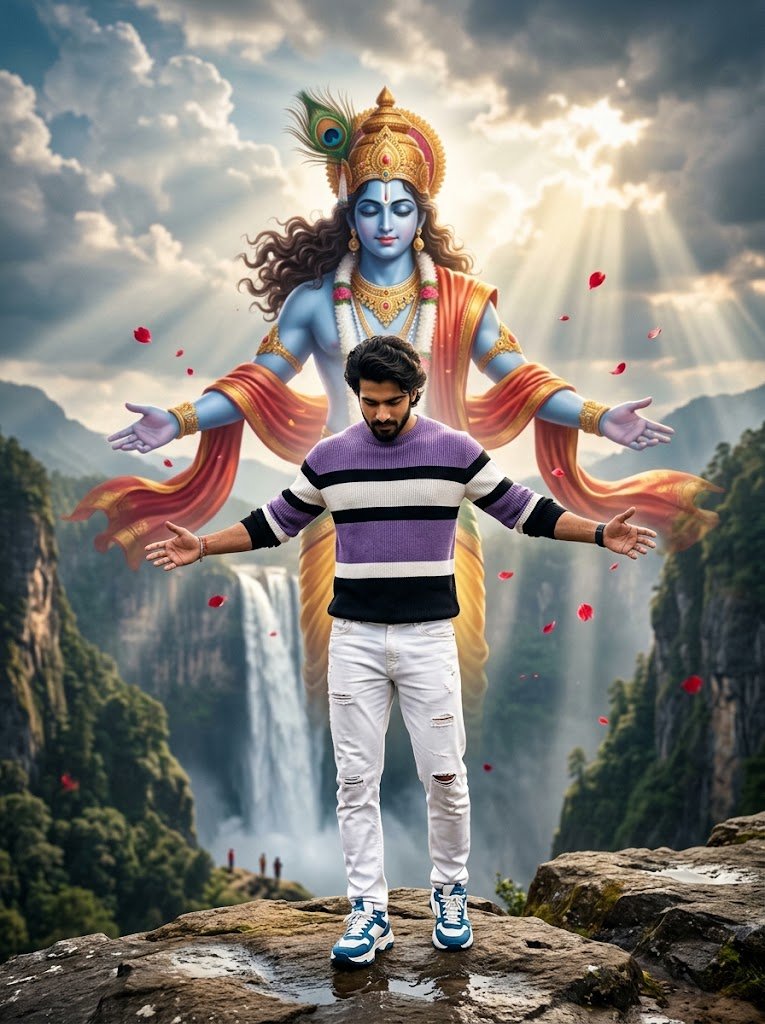
Prompt 2
Use the uploaded photograph as the exact base image. Preserve the person completely and use the uploaded image as the primary identity and appearance reference. Do not regenerate or replace the person.
Keep the person’s face, facial structure, hairstyle, skin tone, clothing, body proportions, pose, expression, and position exactly as they appear in the original photograph. The subject must remain centered in the foreground and sharply focused.
Change the background only. Replace the existing background with a simple, clean light-grey backdrop while leaving the foreground person untouched.
Behind the subject, positioned at a visible distance, add a large dark silhouette representing Lord Krishna. Keep the Krishna figure slightly blurred so that the person in the foreground remains the main focal point.
The Krishna silhouette should feature glowing white eyes, bright white energy-like cracks, a prominent peacock feather, ornate traditional jewelry, a dhoti, and both arms extended outward in a blessing gesture.
Surround the Krishna figure with artistic black ink splashes and subtle smoky atmospheric effects. Add a soft luminous halo behind the silhouette.
Create a cinematic, high-contrast, dark devotional-art appearance while keeping the foreground subject completely photorealistic. Use premium IMAX-style image quality, realistic lighting, detailed textures, and an 8K photographic finish.
Final format: Instagram 4:5 vertical, 1080 × 1350.
Strict editing rule: Do not alter the uploaded person in any way. No face changes, no hairstyle changes, no clothing changes, no pose changes, no expression changes. Only replace and enhance the background elements described above.
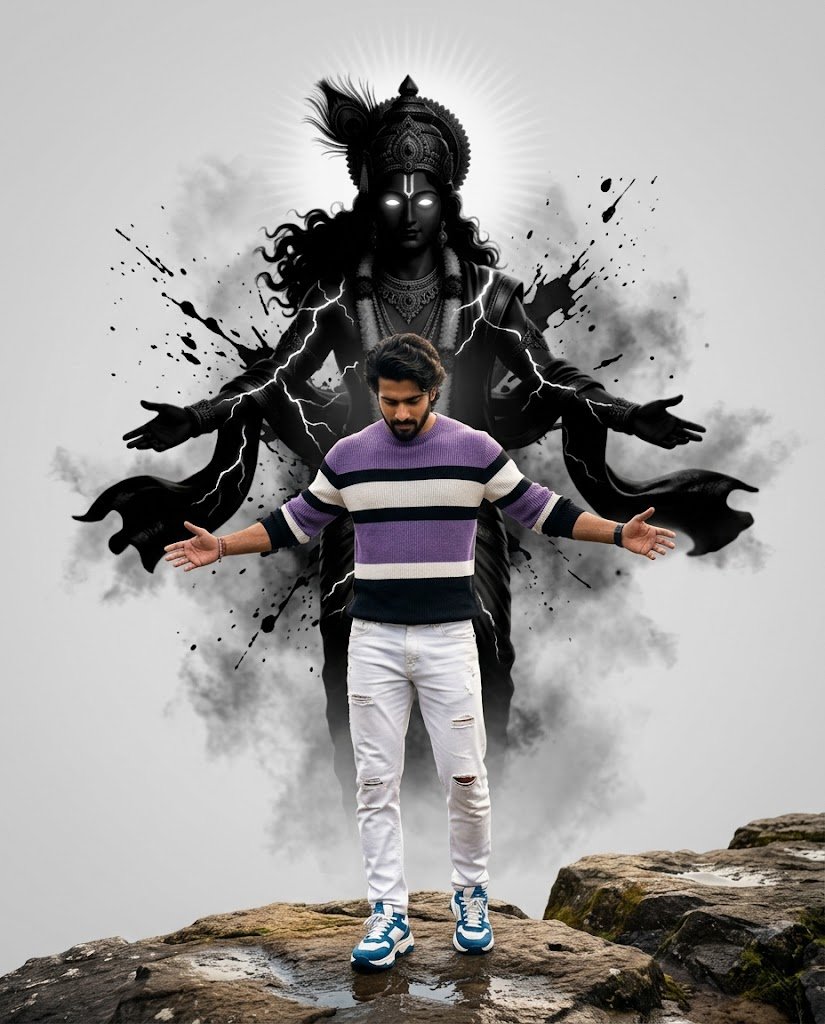
Prompt 3
Use the uploaded woman’s photograph as the identity reference and transform her into the scene described below. Keep the same recognizable person rather than generating a new woman. Preserve her facial structure, distinctive features, skin tone, natural appearance, and recognizable identity.
Create an ultra-realistic cinematic 9:16 close-up portrait of the uploaded woman as a divine Radha-inspired muse during a warm golden sunset.
Maintain her recognizable facial identity while giving the scene a graceful devotional aesthetic. Her skin should appear naturally luminous with realistic texture. Her eyes should look slightly upward, accompanied by a soft, romantic and peaceful expression.
Keep her long dark hair naturally wavy with delicate loose strands framing the face.
Style her with luxurious traditional jewelry, including a detailed pearl-and-gold maang tikka, layered pearl necklaces, a delicate nath, elegant earrings, and an ornate gemstone choker.
Apply refined soft-glam makeup featuring subtle champagne shimmer and a natural luminous highlight. Add delicate white-and-pink devotional artwork across the forehead and cheeks while keeping her underlying facial structure unchanged.
Place a softly blurred peacock feather in the foreground. Behind her, create a dreamy amber bokeh environment illuminated by warm golden sunset rays.
Use volumetric golden lighting, shallow depth of field, realistic skin pores, detailed hair strands, natural jewelry reflections, and premium editorial-fashion photography characteristics.
The final image should feel mystical, regal, ethereal, and devotional while remaining genuinely photorealistic.
Composition: vertical 9:16 close-up portrait with the face as the primary focal point.
Identity lock: Use the uploaded woman’s face as the source identity. Do not substitute a different face, reshape her facial features, or unnecessarily beautify her appearance.
Prompt 4
Transform the uploaded woman’s photograph into the following Radha Rani-inspired scene. Use her uploaded face as the exact identity reference and keep her recognizable as the same person. Preserve her facial geometry, skin tone, natural features, and overall identity.
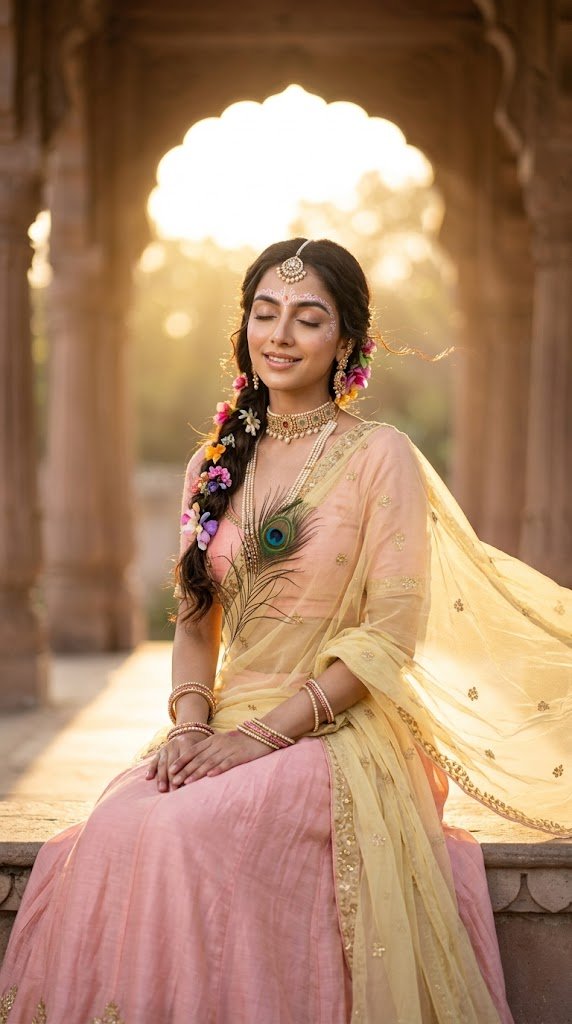
Create a dreamy, ultra-realistic portrait of the uploaded woman seated gracefully with a gentle smile and softly closed eyes.
Dress her in a beautiful pastel-pink lehenga combined with a light-yellow sheer dupatta. The outfit should feature subtle golden embroidery, realistic folds, and natural fabric movement.
Arrange her long hair into a loose side braid decorated with colorful flowers. Add traditional accessories including floral earrings, elegant bangles, a small necklace, and a delicate maang tikka.
Place a peacock-feather pendant naturally near her chest. Keep her makeup minimal and graceful, with naturally glowing skin and a small bindi.
Set the scene against softly blurred temple arches illuminated by warm golden sunset light. Introduce a gentle breeze that creates subtle movement in the loose hair strands and the sheer dupatta.
Use cinematic portrait lighting, warm tones, shallow depth of field, realistic fabric texture, natural skin detail, and highly detailed 8K photorealistic rendering.
Identity preservation: The woman’s face must remain recognizable as the person in the uploaded photo. Do not replace her face, change her facial structure, or create an unrelated AI-generated person.
Prompt 5
Use the uploaded woman’s photograph as the main identity reference. Recreate her in the scene below while keeping her recognizable facial identity, facial proportions, skin tone, hairstyle characteristics, and natural appearance consistent with the uploaded image.
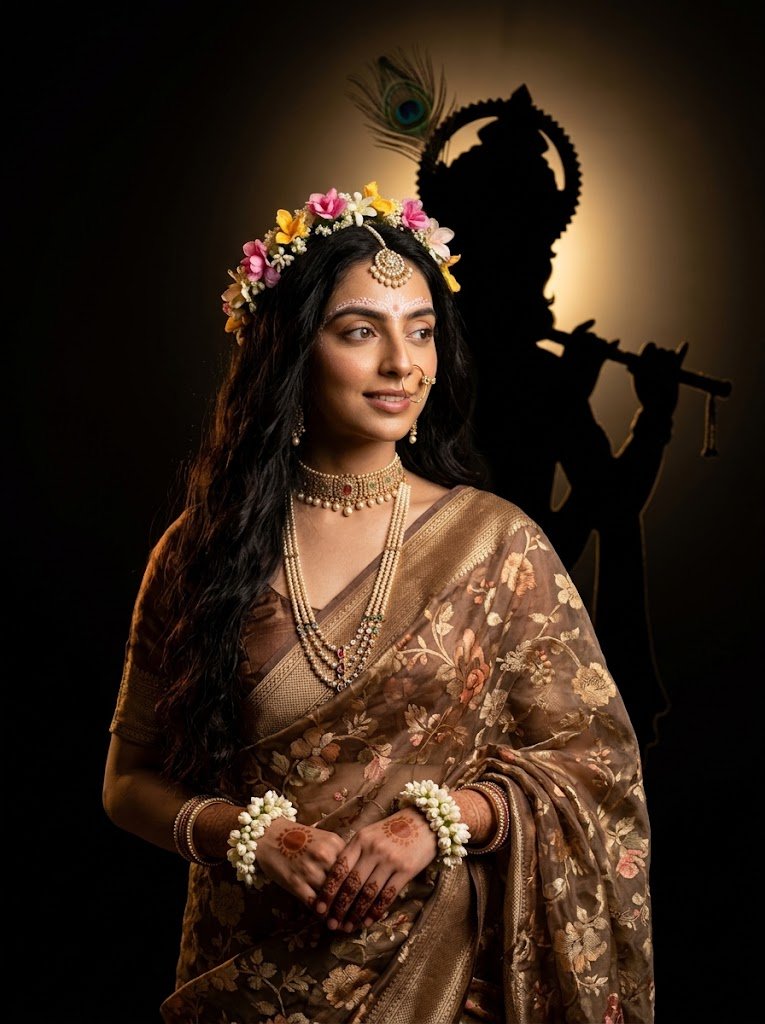
Create an ultra-realistic cinematic medium-close portrait framed from approximately the waist upward.
Position the uploaded woman with her body turned slightly three-quarter toward her left. Keep her shoulders relaxed and gently turn her head toward the right side of the frame. Her eyes should look sideways while she maintains a calm, serene smile.
Give her long, wavy black hair falling naturally over one shoulder. Dress her in a brown-and-gold floral saree with a sheer embroidered pallu.
Style her hair with a floral gajra crown decorated with pink flowers. Add a delicate nose ring, traditional earrings, and white flower bracelets around both wrists.
Her hands should be gently clasped together in front of her waist.
Illuminate her face with warm golden light while retaining realistic skin texture and natural facial detail.
Behind her, place a large dark silhouette of Lord Krishna playing the flute. Krishna should be softly backlit with a subtle golden halo, with a recognizable peacock feather visible above him.
Keep the surrounding environment predominantly deep black to create a dramatic devotional cinematic atmosphere. Use realistic skin and textile details, controlled shallow depth of field, cinematic contrast, and a vertical 3:4 portrait composition.
Identity lock: The woman in the final image must remain the same person shown in the uploaded photograph. Do not substitute another face or alter her defining facial characteristics.
Prompt 6
Take the uploaded woman’s photograph as the primary identity reference and transform her appearance into the Radha-inspired scene described below. Keep her recognizable as the same person and preserve her natural facial identity, facial proportions, skin tone, and distinctive features.
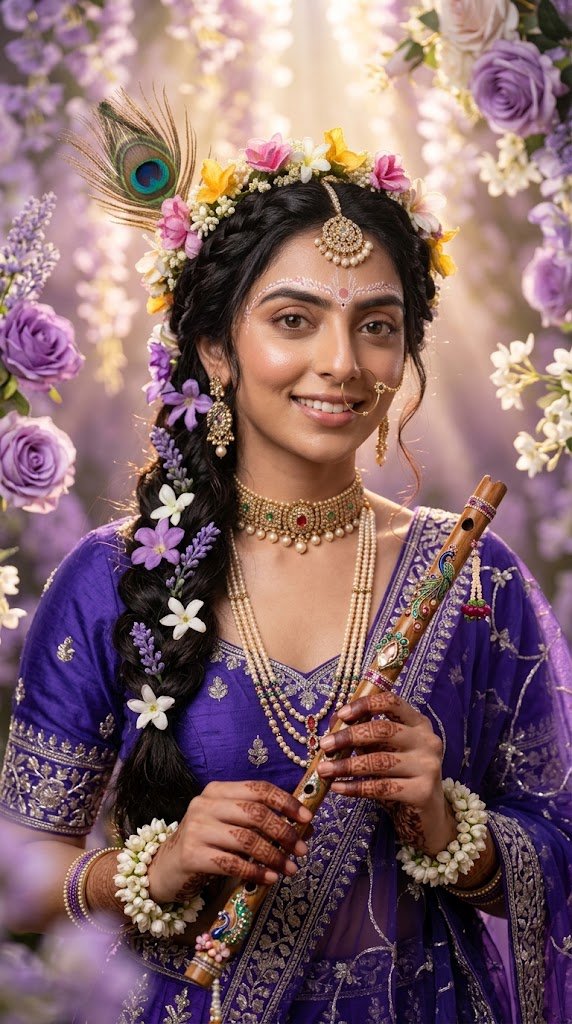
Create an ultra-realistic close-up portrait of the uploaded Indian woman with a graceful divine Radha-inspired appearance.
Dress her in a royal-purple embroidered lehenga paired with a sheer dupatta. Decorate her with elegant purple-and-white floral jewelry and arrange her hair into a beautifully decorated floral braid.
Add delicate traditional forehead jewelry and incorporate a peacock feather into the styling. Have her naturally hold an intricately decorated bansuri flute.
Give her a gentle, warm smile with fresh dewy makeup while maintaining realistic skin texture and natural facial detail.
Surround her with a dreamy lavender floral setting. Keep the flowers softly blurred in the background to create beautiful depth and separation from the subject.
Use soft cinematic illumination, realistic textures, shallow depth of field, natural facial detail, and an elegant devotional-editorial atmosphere.
Composition: vertical 9:16 close-up portrait.
Strict identity preservation: The uploaded woman must remain the same recognizable person. Do not generate a random face, change her facial structure, or excessively beautify or smooth her features.
Why Radha Krishna AI Photos Are Trending
This trend picked up pace as AI image tools became good enough to handle traditional Indian clothing, jewelry, and devotional settings realistically — something earlier AI tools struggled with. On Instagram and Facebook, people use these images as profile picture updates, Janmashtami posts, devotional wallpapers, and personalized greeting images. On WhatsApp, they’re commonly used as Status updates around festival time.
Part of what makes this style so flexible is the range of visual elements available to combine — traditional silk and cotton clothing, gold jewelry, peacock feathers, flute details, temple architecture, garden or Vrindavan-style backgrounds, and warm golden-hour or temple lighting. The same basic idea (a Radha Rani portrait, for example) can look completely different depending on which of these elements you emphasize — a peaceful temple courtyard versus a colorful garden versus a cinematic sunset setting.
Which AI Tool Should You Use: Gemini or ChatGPT?
Both tools can run these prompts, but they behave a little differently:
Gemini is generally the easier starting point if you’re new to AI photo editing. You upload a photo, paste the prompt, and it tends to follow instructions closely with fewer extra adjustments needed. It’s a good first choice for the selfie-editing prompt specifically, since keeping your face recognizable matters most there.
ChatGPT often adds more artistic interpretation to a scene, which can work particularly well for the temple and couple prompts where a more cinematic, illustrated feel is welcome. If you’re using ChatGPT for the selfie-editing prompt and want your face kept closer to the original photo, it can help to explicitly repeat in your message that facial features should not be changed.
If a result from one tool doesn’t match what you pictured, running the same prompt through the other tool often gives a noticeably different — and sometimes better — result.
How to Use These Prompts (Step by Step)
Pick a prompt from the categories above that matches what you want to create.
Copy the full prompt text.
Open Gemini or ChatGPT — on mobile, this usually means opening the app and starting a new chat.
Upload your photo, if the prompt requires one (the selfie-editing and couple prompts typically do; portrait and temple prompts can work with or without a reference photo).
Paste the prompt into the chat box. If you’d like, add one or two extra details of your own — a clothing color, a specific flower, a lighting preference — before sending.
Send and wait a few moments for the AI to generate the image.
Refine if needed. If something’s off — say the background is good but the clothing color isn’t what you wanted — ask specifically for that one change rather than regenerating the whole image from scratch. Small, targeted adjustments usually work better than starting over.
Tips & Common Mistakes
Photo quality matters as much as the prompt. If you’re editing your own photo, use one taken in clear, even light with your face fully visible — dark, blurry, or heavily filtered photos give the AI less to work with, and results usually come out less accurate.
Avoid prompts that are too short. Something like “make me Radha Rani” leaves the AI to guess clothing, jewelry, background, and lighting on its own, which usually produces a generic result. On the other hand, avoid piling on dozens of unrelated details either — a clear, moderately detailed prompt outperforms both extremes.
Be specific about the background. “Traditional temple,” “Vrindavan-style garden,” or “golden sunset lighting” gives the AI a real visual direction. A vague request like “nice background” doesn’t.
Change one element at a time when refining. If the pose and lighting are right but the jewelry looks off, ask only about the jewelry. Changing everything at once makes it harder to tell what actually improved the result.
Don’t expect identical results every time. Even with the exact same prompt, AI tools can produce slightly different facial details, background elements, or composition between generations — this is normal, not a sign the prompt is broken. Generating the same prompt two or three times, and picking the best result, is common practice.
Is It Free? Gemini vs ChatGPT for This Use Case
AI Tool
Free Access
Paid Features
Good for Beginners
Gemini
Yes, with usage limits
Faster generation, higher usage limits on paid tiers
Yes — easiest to start with
ChatGPT
Yes, plan-dependent
Higher-quality generation and increased limits on paid plans
Yes — slightly more control once comfortable
Both tools let you get started without paying anything. Paid plans mainly help if you’re generating a lot of images and hitting free-tier limits, or want faster processing — they’re not required to use any of the prompts on this page.
Frequently Asked Questions
Can both boys and girls use these prompts?+
Yes. Use the Krishna prompt for a male-style portrait and the Radha Rani prompt for a female-style portrait, or use the couple prompt together. You can also adjust clothing, jewelry, or color details in either prompt to suit what you want.
Do I need to upload my own photo for every prompt?+
No. The selfie-editing prompt is specifically designed to work with your own uploaded photo. The portrait, couple, and temple prompts can generate a new image without a reference photo, or be adapted to use one — just mention that in your message if you want your face reflected in the result.
Why didn’t my result look like the example?+
This usually comes down to photo lighting/clarity (for edit-based prompts), which AI tool you used, or small differences between generations even with an identical prompt. Try adjusting one specific detail — background, lighting, or clothing color — rather than rewriting the whole prompt.
Can I change the colors, jewelry, or background in these prompts?+
Yes — these prompts are meant to be a starting point, not a fixed formula. Swap in different clothing colors, jewelry styles, flower types, or lighting descriptions to match what you’re picturing.
Do these prompts work on both mobile and desktop?+
Yes, the same prompt text works whether you’re using the Gemini or ChatGPT app on your phone or the website on a computer — only the upload steps look slightly different between the two.
Are these prompts suitable for Janmashtami or festival posts specifically?+
Yes — the temple and couple prompts in particular are well suited to festival content, and you can add festival-specific details (diyas, flower garlands, rangoli) directly into the prompt if you want a more occasion-specific look.
Want to create a powerful Mahadev photo for Maha Shivaratri using your own face? These Mahadev Maha Shivaratri AI photo editing prompts can transform a simple photo into a realistic devotional portrait with Lord Shiva, Shivling, Trishul, Rudraksha, Kedarnath Temple, and beautiful Himalayan backgrounds. Just upload a clear photo to Gemini, ChatGPT, or your preferred…
A childhood photo prompt can bring your past and present into the same frame. You can create a realistic photo of your current self meeting or hugging your younger self, recreate a nostalgic birthday moment, or even generate a childhood-style portrait when you do not have an old photo. Below are ready-to-copy prompts designed for…
A blurry photo does not always need complicated editing to look clear again. If your picture looks out of focus, pixelated, soft, compressed, or low quality, the right blur image to clear image prompt can help AI improve its clarity while keeping the original photo natural. Below, you’ll find one powerful copy-and-paste prompt designed to…
Sibling photos look best when they capture the small things that make a brother-sister relationship feel real—a familiar smile, playful teasing, helping each other, or simply spending time together. With a detailed brother and sister prompt, you can combine separate reference photos or transform an existing sibling picture into a more polished family portrait while…
Want to create a beautiful Raksha Bandhan photo with your brother or sister using AI? These Raksha Bandhan AI Photo Editing Prompts help you turn your uploaded photos into realistic Rakhi celebration portraits while keeping both faces natural and recognizable. Upload clear photos of the brother and sister to Gemini, ChatGPT, or another AI image…
Some father-daughter moments are easy to remember but difficult to capture in one perfect photograph. You may have separate photos, an old family picture, or simply want to recreate a meaningful scene that never made it to the camera. A well-written father and daughter prompt for Gemini can turn those reference photos into realistic family…